2. Drawing a circuit
The requirements say what the door alarm must do. Now we draw how: the controller, as a circuit of blocks wired pin to pin, the way it would be designed in Simulink or in a PLC's function block diagram.
A new circuit
Intrepid: New Circuit, from the side bar (New in the title of
Circuits), the Command Palette, or the explorer's context menu on a
folder. An untitled circuit opens; save it (Ctrl+S) as
door-controller.intrepyd.json.
Project › New circuit, and call it door-controller.intrepyd.json.
Project › New circuit, and call it door-controller.intrepyd.json.
The editor has the palette of blocks on the left, the canvas in the middle, and the properties of the selected block on the right.
Adding blocks
There are three ways to add a block:
- type its name on the canvas: a letter opens a field where the pointer is, with the blocks it matches below; Enter adds the one chosen;
- search the palette: the field on top filters the blocks as you type; Enter adds the first;
- drag it from the palette, or click it to drop it in the middle of the view. The palette's categories start folded.
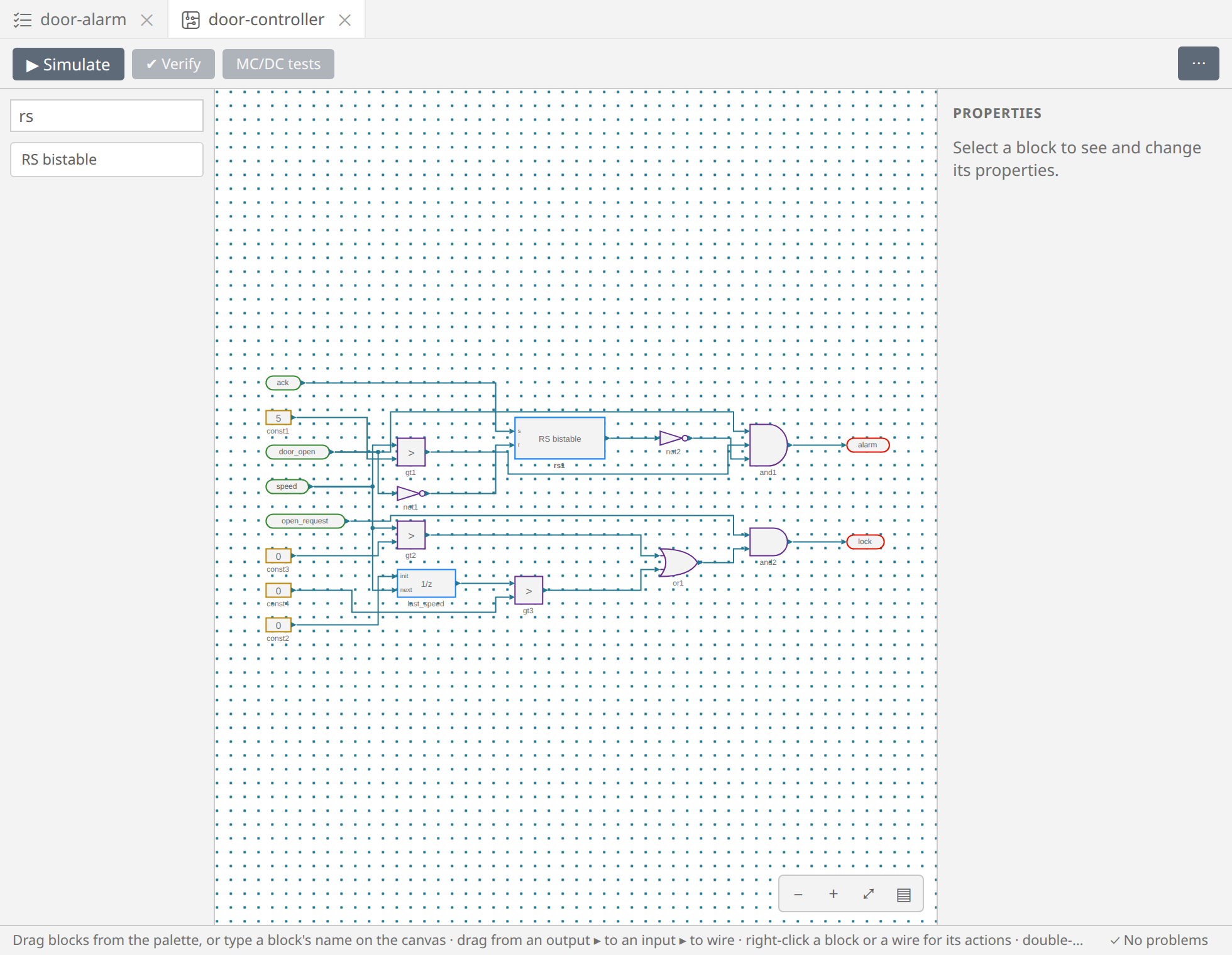
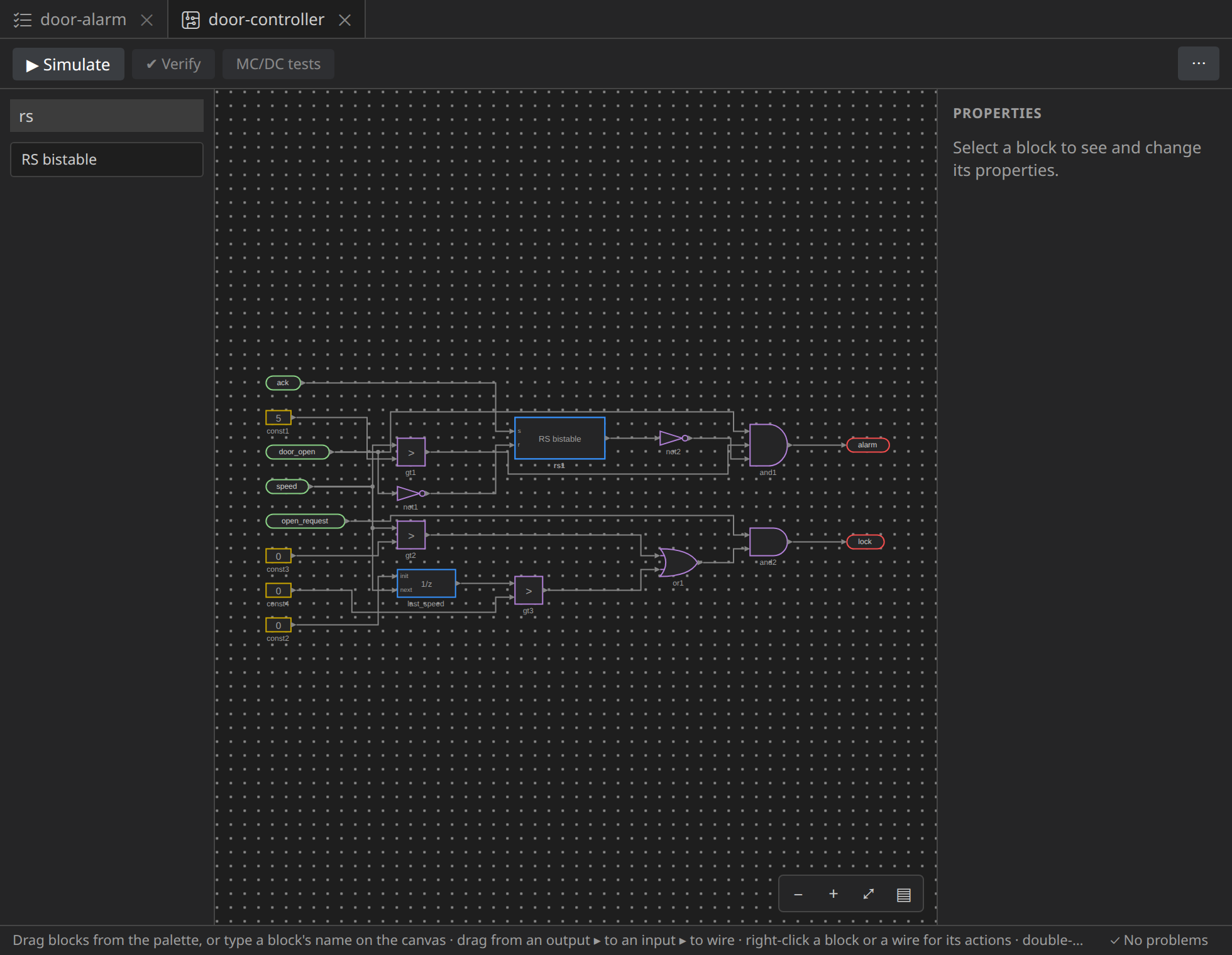
Every block gets a name, the first free of its kind (in1, and1,
const1, …), which you change in its properties, with its type, its value,
or its number of inputs.
The alarm
Add these blocks, and set their properties:
| Block | Palette | Properties |
|---|---|---|
door_open, ack, open_request |
In | type bool |
speed |
In | type int16 |
| a constant | Constant | value 5, type int16 |
| a comparison | > (Compare) | |
| two inverters | NOT (Logic) | |
| an RS bistable | RS bistable (PLC) | |
| a three-input AND | AND (Logic) | inputs 3 |
alarm |
Out |
Wire them: drag from an output pin ▸, on the right of a block, to an input pin on the left of another. A wire into an input that already has one, or one that would close a loop no delay breaks, is refused, and the status line says why. Wires are routed for you, around the blocks.
speedand the constant into the comparison:speed > 5, moving;ackinto the bistable'ss(set), anddoor_openthrough an inverter into itsr(reset): the bistable remembers that the driver acknowledged, until the door closes;- the bistable through the other inverter,
door_openand the comparison into the AND, and the AND intoalarm.
The RS bistable is a block of intrepyd's library: reset-dominant, its
output Q is set by s and reset by r, reset winning when both are true.
The other library blocks (timers, counters, edge detectors, flip-flops) are
in the EDA and PLC sections: see Blocks.
The lock
The lock needs the speed of the step before. A Unit delay (State in
the palette) is a block of memory: its output is its init input at the
first step, then, at each step, the value its next input had at the step
before.
- a Unit delay named
last_speed, of typeint16, with a constant0(int16) intoinitandspeedintonext; - two comparisons with
0:speed > 0andlast_speed > 0, into an OR: the vehicle moves, or did a step before; - an AND of
open_requestand the OR, into an Out blocklock.
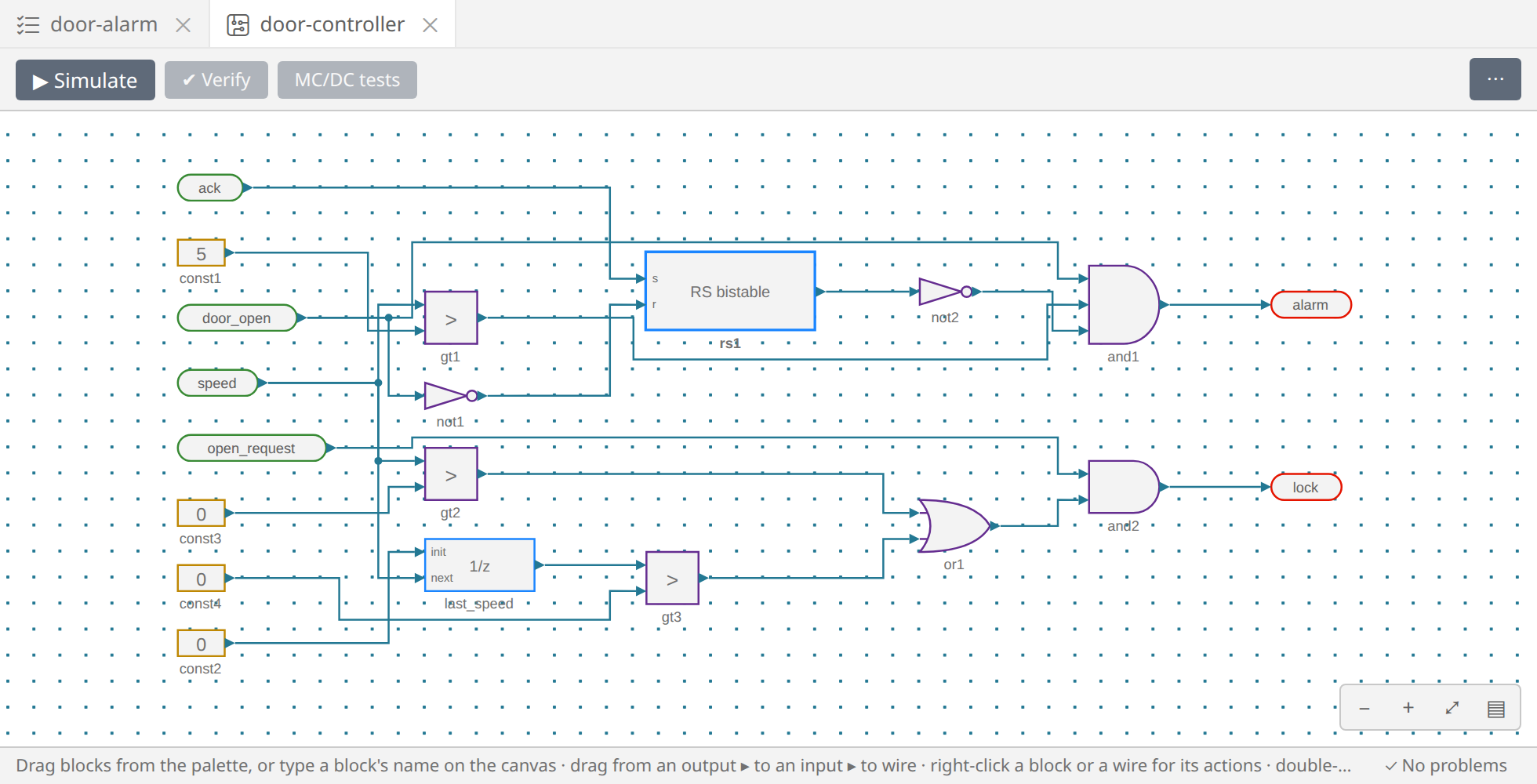
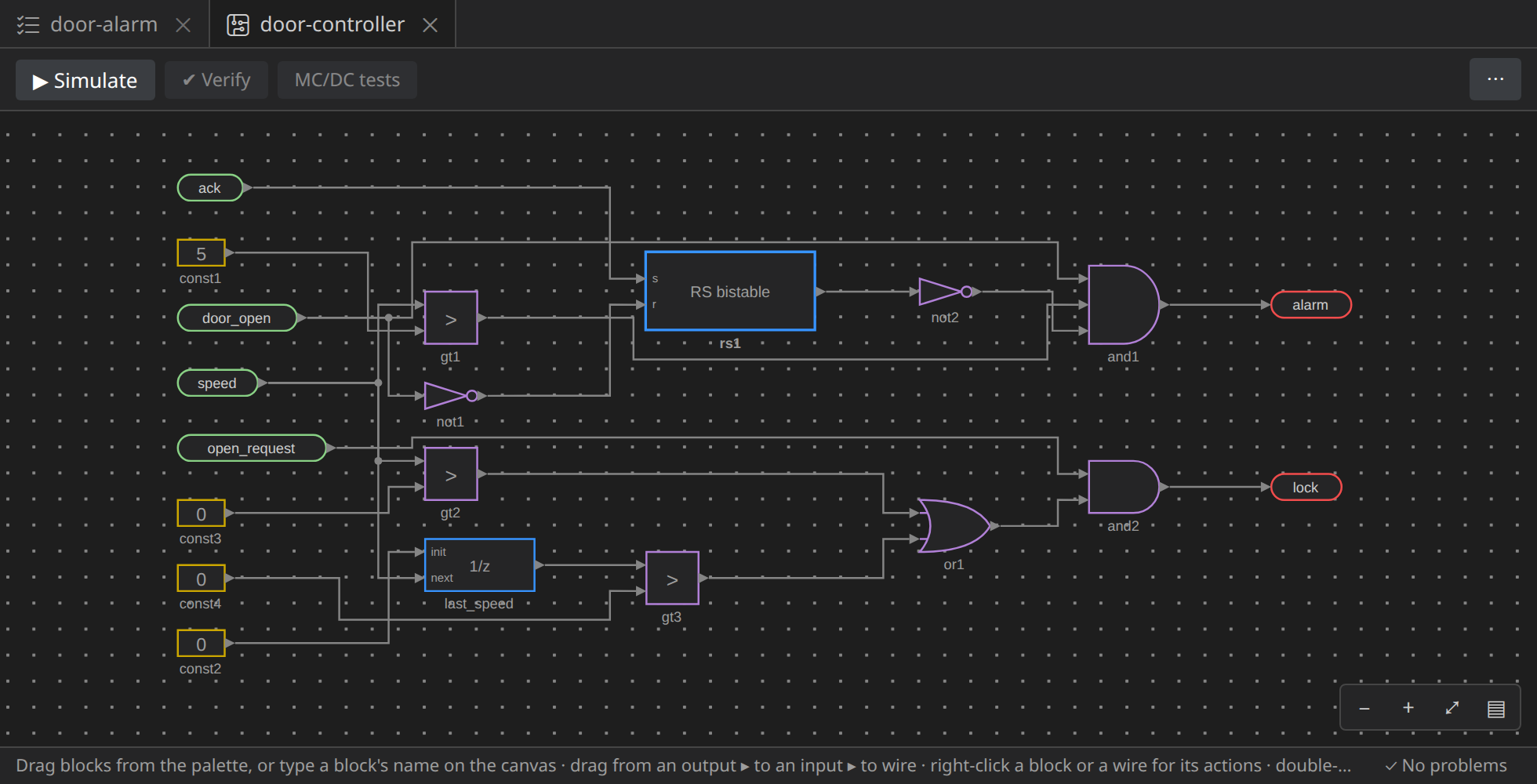
Auto-arrange, in the editor's ⋯ menu, lays the blocks out by their connections, if yours got crowded. To move a block, drag it (its wires follow), or select it and use the arrow keys. Pan with the wheel or Space+drag, zoom with Ctrl+wheel; the corner of the canvas has zoom, fit and the panel.
The checker
The editor checks the circuit as you draw. Leave an input of the alarm's AND unwired, and see:
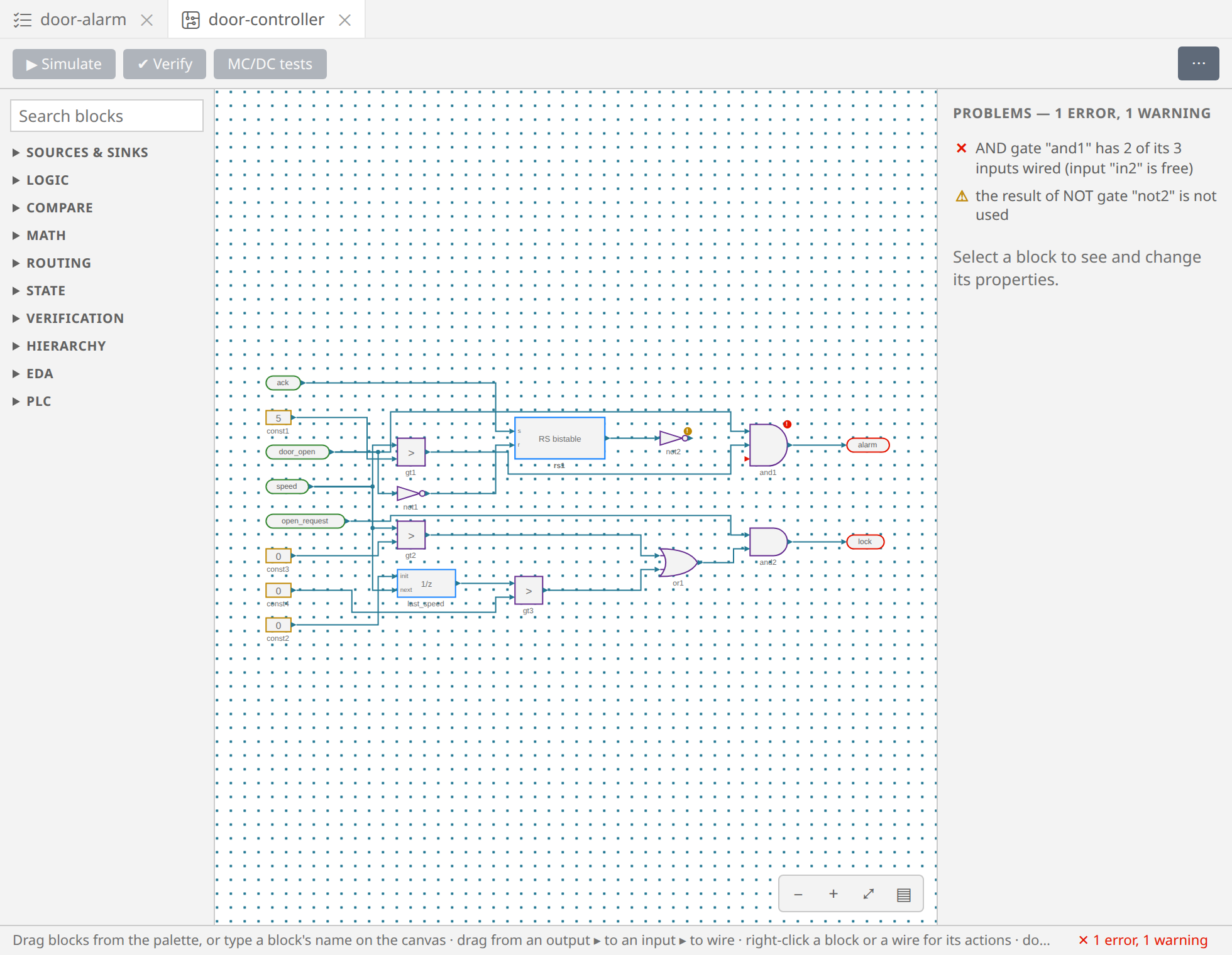
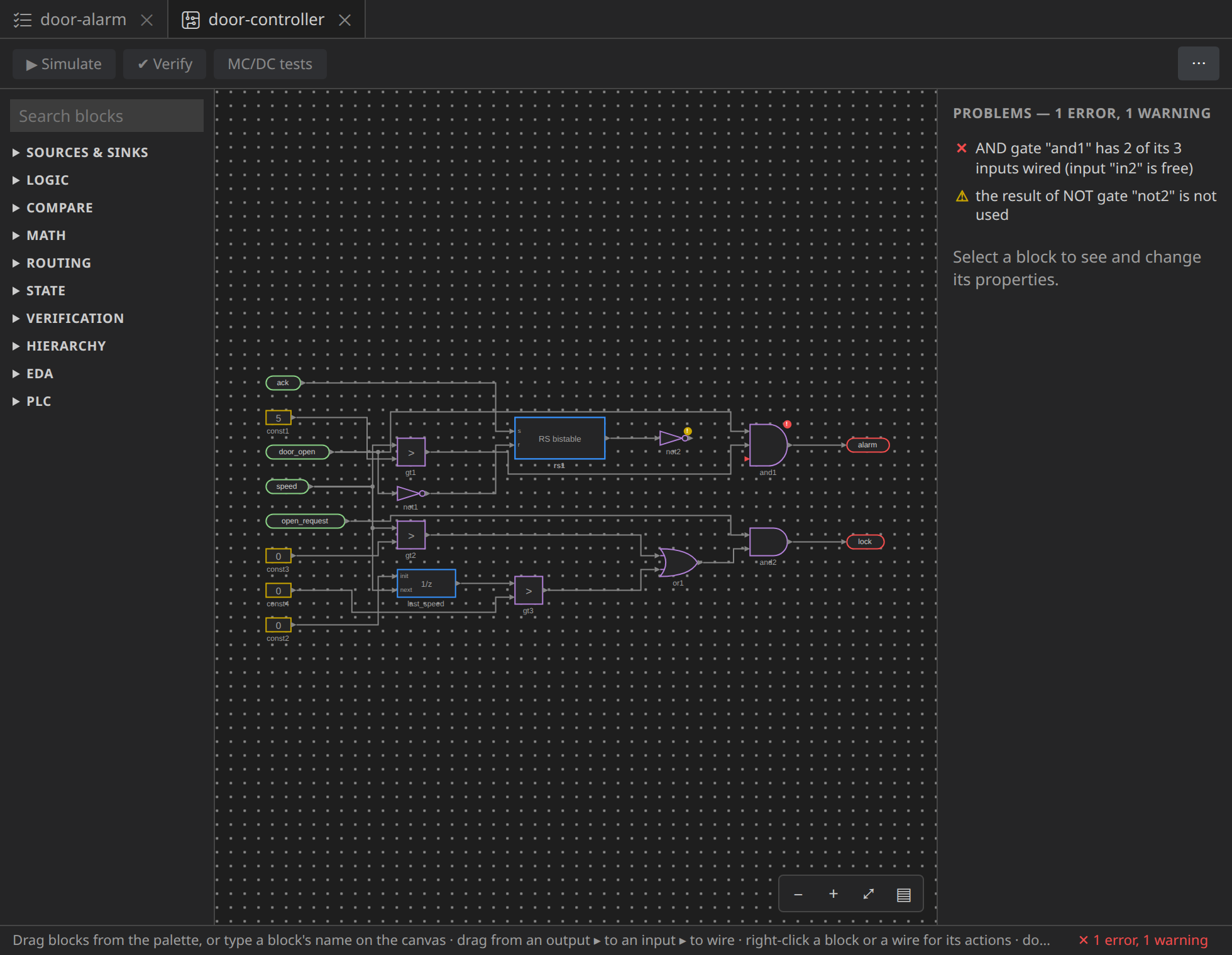
- the block gets a red badge (an error) or a yellow one (a warning), and its free input pin turns red;
- the status line counts the problems; a click there lists them in the properties panel, and a click on one goes to its block. In VS Code they are in the Problems panel too;
- Simulate, Verify and MC/DC tests wait until the errors are fixed.
Here the AND has 2 of its 3 inputs wired, and the result of the inverter that should feed it is not used. Wire it back. The messages are all listed in the reference.
Subsystems
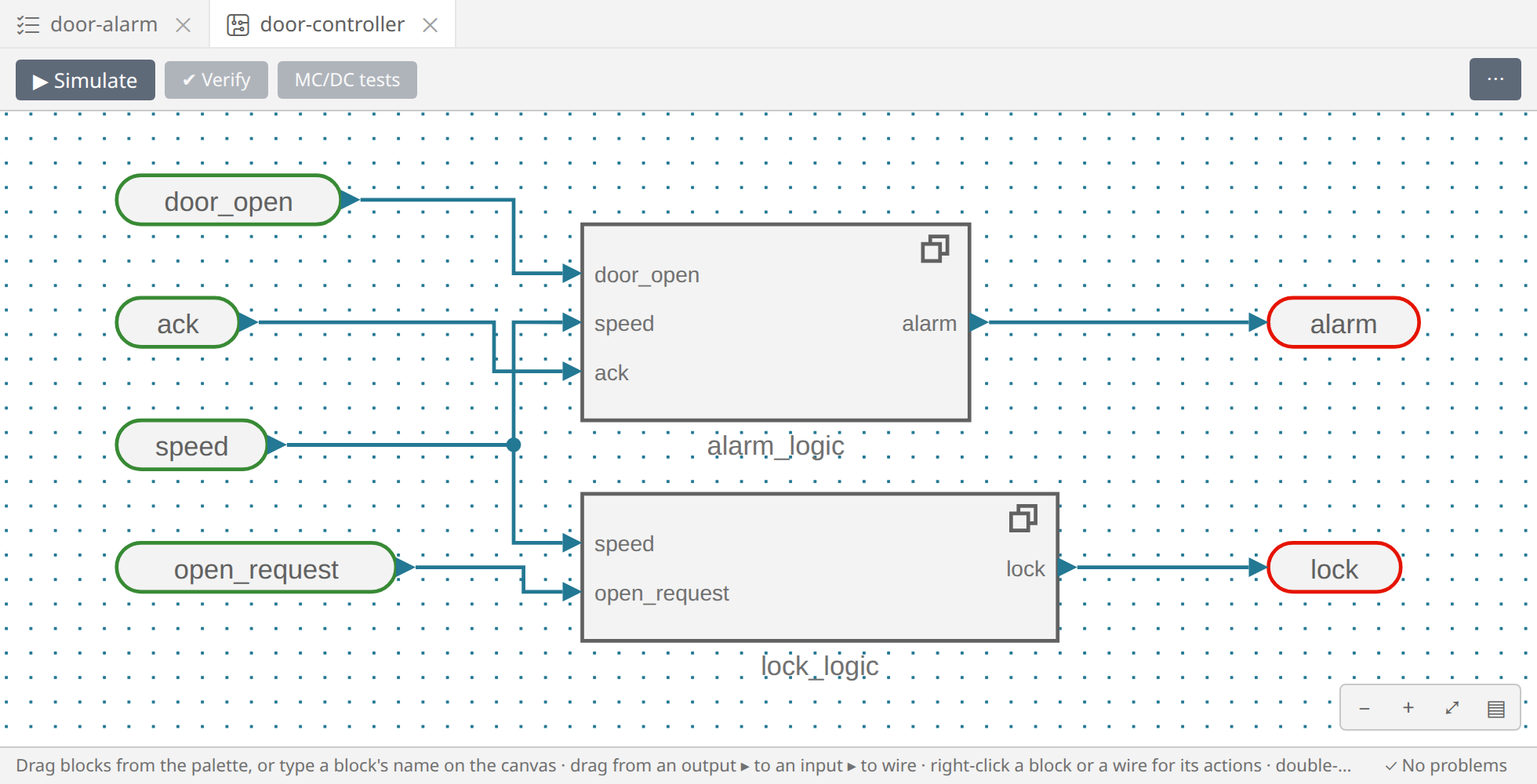
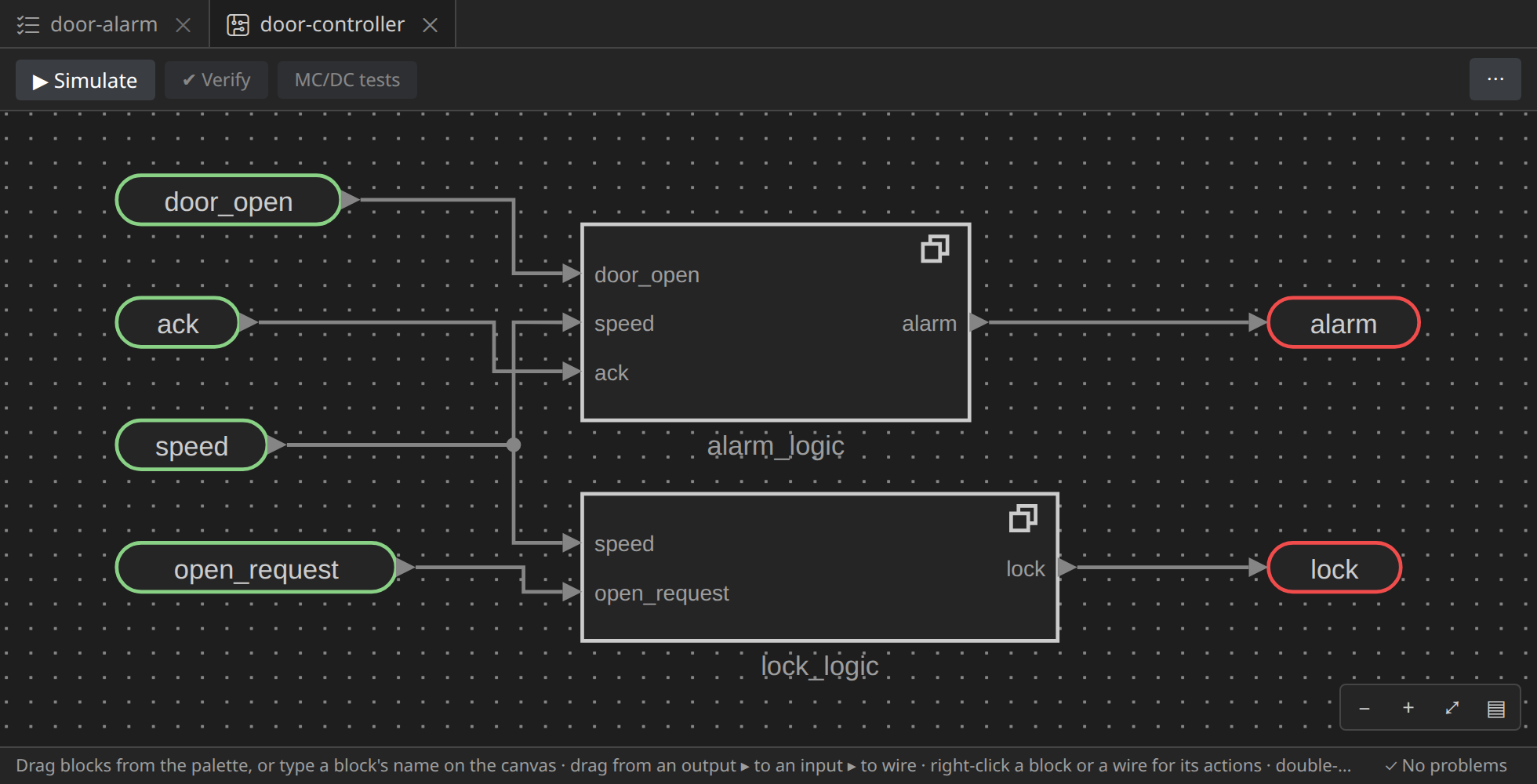
The circuit has two parts, the alarm and the lock. Make each a subsystem, a block that holds a part of the circuit:
- select the alarm's blocks, from the constant 5 to the AND (drag a rectangle around them on the canvas, or Ctrl+click them one by one), but not the In and Out blocks;
- press Ctrl+G (or Make a subsystem in their right-click menu). They become one block; each wire that crossed the selection is now one of its pins;
- name it
alarm_logicin its properties.
Do the same with the lock's blocks, as lock_logic.
Double-click a subsystem to see its inside. Its In and Out
blocks are its pins: rename the Out block alarm to name the pin. The
breadcrumb in the toolbar (Top › alarm_logic) leads back up.
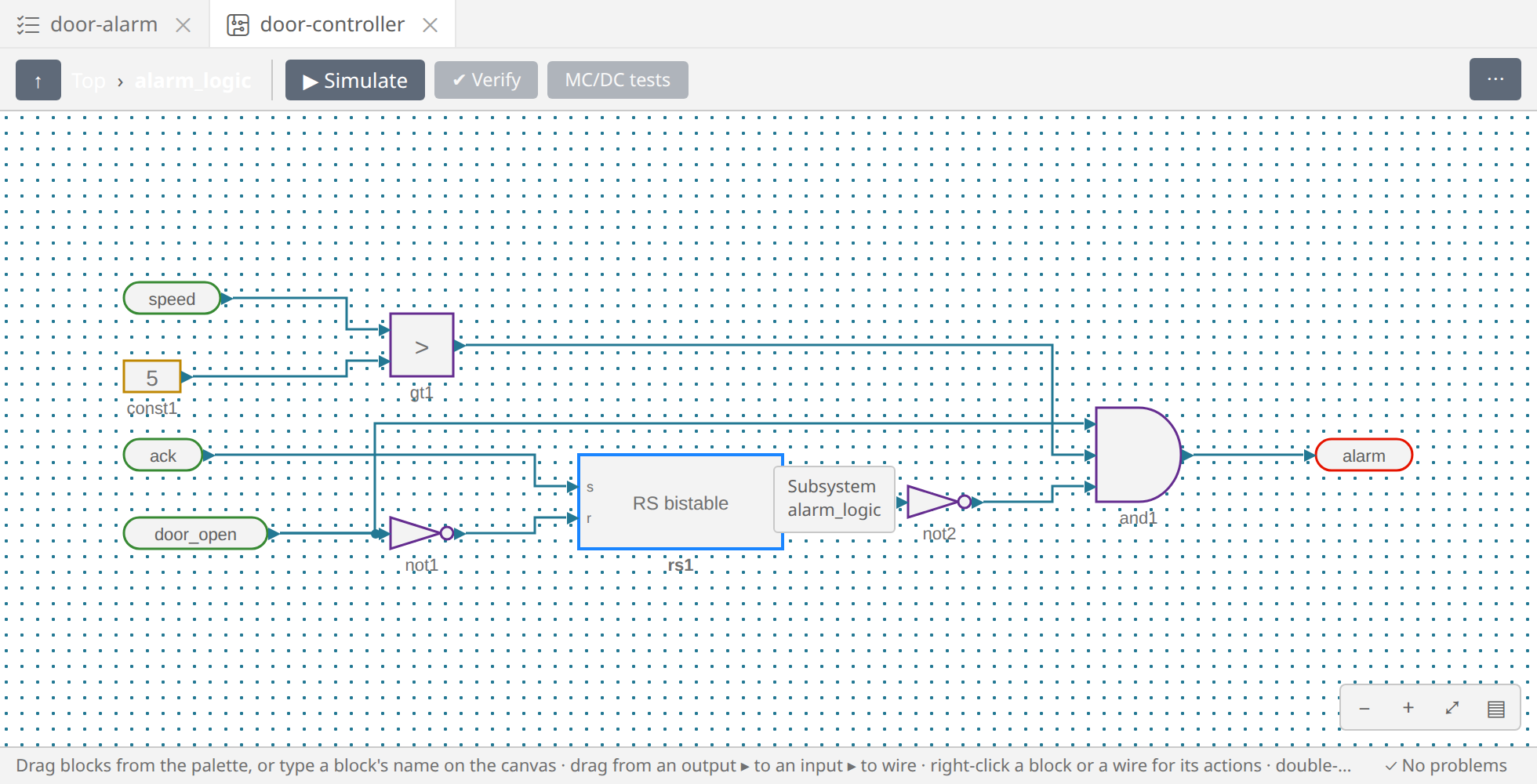
Subsystems nest; Ungroup, in a subsystem's right-click menu, puts its blocks back. The checker, Simulate and Verify see through them.
What comes next
The circuit is drawn. Next, we run it on some inputs.